Scenario: Your Access database environment consists of a backend database (containing the shared data tables), with each user maintaining their own copy of the frontend database (containing local tables, forms, queries, reports and modules) stored locally on their PC.
As the database administrator, you are likely updating and enhancing database functionality contained in database objects within the frontend database. Once you have tested your updates, you are faced with the challenge of distributing your changed objects to the other end users. It can be a logistical challenge to ensure everyone has the latest changes.
Wouldn’t it be ideal if the database administrator could centrally maintain a copy of the frontend database, including all the most current database objects, and then implement a solution in which each user’s frontend database checks for and applies updates each time their database opens!
At the end of this post I include a sample database download. To describe its functionality, let’s first make the following definitions:
- Local Frontend Database: This is the copy of the frontend database that users and administrators have stored on their local PCs.
- Shared Frontend Database: This is a copy of the frontend database containing all the latest database objects. Often this is the database that a new user copies to their local PC.
- Shared Frontend Folder: A shared folder on a server to store the Shared Frontend Database.
In the sample database are the following key components:
- UpdateObjects Function: This function is invoked as soon as the database opens. It performs the following:
- Establishes a link to the MsysObjects table of the Shared Frontend Database.
- Runs a query (named ~qryObjectsToUpdate) to compare data between the linked and local MsysObjects tables to return a list of objects that either only exist in the Shared Frontend Database (new objects) or have been updated (based on last updated date).
- Transfers each object identified by the ~qryObjectsToUpdate query (step ii above) from the Shared Frontend Database to the Local Frontend Database.
- Removes the link to the MsysObjects table of the Shared Frontend Database.
- Launches a user form as would normally occur.
- LinkSysObjects Function: This is called within the UpdateObjects function to create a link to the MsysObjects table of the Shared Frontend Database
- ~qryObjectsToUpdate Query: This query compares data between the linked and local MsysObjects tables to return a list of objects that either only exist in the Shared Frontend Database (new objects) or have been updated (based on last updated date).
- AutoExec Macro: This macro is automatically invoked on database open to launch the UpdateObjects function.
To test the sample database:
- Unzip the file and store the Update Object.accdb file in a folder on your PC. Copy this file to another folder (a folder that will act as the Shared Frontend Folder).
- Open the VBA code editor window (Alt+F11), open the Startup module and modify the highlighted portion of
this line of code to correspond to the full file path and name of the Shared Frontend Database.
Public Const UpdatesDB As String = “C:\Users\blatc\Update Database Objects – MASTER.accdb”
- Save changes and close the database.
- Launch your local copy of the database. The customer form should display. Close the database.
- Open the Shared Frontend Database. Add or make some changes to one or more objects. For example, edit the customer form and make some minor changes such as changing the background colour on the form header. Perhaps create a simple query or report. Save all your changes and close the database.
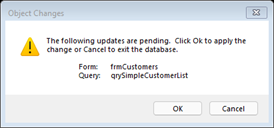
- Launch your local copy of the database. A message should appear to list your changed objects. Click the OK button. The objects will be updated and the customer form will again be displayed. Make sure your changes made in the Shared Frontend Database are now reflected in your local copy of the database.
To implement all of this in your frontend database:
- Export the Startup module from the sample database into your database.
- Export the ~qryObjectsToUpdate query into your database.
- Update the line in the general declarations area of the Startup module to reflect the full filepath of your Shared Frontend Database
- Modify the line of code in the UpdateObjects that currently opens the Customer form to be a form in your database. Also, disable any startup Display Form declared in the Access Options:
- Create a macro called AutoExec to invoke the RunCode command, providing UpdateObjects() as the function. Alternatively you could export this macro from the sample database.
Here is the sample database.
This example might be confusing to understand and/or implement. If you encounter problems, please let me know and perhaps I can help. Cheers!